Install Linux on your F50 or U30 Air
Four steps, about 15 minutes. Every question the installer asks is explained below, with the answer to give when you are not sure.
Back up
Copy your device's own irreplaceable data to your computer. Recommended.
Check
--checkreads the device and says where Linux fits. It writes nothing.Install
Answer a few questions, read the summary, type
INSTALL.Log in
About a minute later, over USB: SSH or a web browser.
Before you start
In one sentence: the device must already be rooted, and your computer must be able to talk to it with
adb. Here is the full list.
The device
- A ZTE F50 / MU300 or ZTE U30 Air (not the U30 Pro).
- Rooted and unlocked: it must already boot a modified Android boot image. Getting it there is not part of this project; you do it at your own risk with those tools' own instructions.
- USB debugging turned on, and the device connected to your computer by USB.
Your computer
| Computer | What it needs | How you run the installer |
|---|---|---|
| macOS | adb, Python 3, lz4 and curl (usually already there) | ./install.sh in Terminal |
| Linux | adb, Python 3, lz4 and curl | ./install.sh in a terminal |
| Windows 10/11 | adb and PowerShell. The installer installs Python 3 and its lz4 module by itself when they are missing. | .\install.ps1 in PowerShell, or install.cmd in cmd (no execution-policy change needed) |
adb comes with Android's platform tools. On Windows the installer also finds a
platform-tools folder unzipped next to the project, in your Downloads or on the desktop, even when it is
not on the PATH.
Get the project
Clone it with git, or download it from GitHub (the green "Code" button, then "Download ZIP") and unpack it. Either way the installer brings itself up to date with GitHub when it starts.
git clone https://github.com/dikeckaan/mu300-linux
cd mu300-linux
Then make sure the computer sees the rooted device:
adb devices          # your device should be listed as "device"
adb shell su -c id   # should print uid=0(root)
The first time, the device asks to allow USB debugging from this computer, and Magisk may ask to grant root to the shell: allow both.
Installing writes to one boot partition (boot_b, or boot_a when Android runs from slot b,
as it often does after an update) and to 32 bytes of misc. On the usual 64 GB device, Android, its data
and the partition table are never modified. Still, a power cut at the wrong moment, a bad cable or a mistake can leave
a phone-class device needing a recovery tool. Keep a backup and do not install on a device you cannot afford to
lose.
Back up what cannot be replaced
Recommended. This copies your unit's own data (prodnv, the modem calibration and IMEI partitions, the
bootloader chain) to your computer and checks every copy against the device.
tools/backup-device.sh # macOS / Linux, device in rooted AndroidInstalling never touches these partitions, but if they are ever lost, no firmware download can bring them back and the modem stays broken. Keep the folder somewhere safe and out of any repository: it contains your IMEI. The script runs on macOS and Linux.
Check your device
This only reads; it writes nothing.
./install.sh --check          # macOS / Linux
.\install.ps1 -Check          # Windows (PowerShell)
install.cmd -Check            # Windows (cmd)
It prints the storage size, where Android's partitions end and how much free space follows them. The last line
starting with result: is what matters:
| If it says | It means |
|---|---|
OK: free and empty, same layout as the tested device (~32 GiB after userdata on the 64 GB eMMC) | The usual 64 GB device. Go on to step 2. |
OK: free and empty, ... but room for one system only, or OpenWrt fits, Ubuntu does not | A smaller free area. Install what fits, or use an SD card (F50). |
too little free eMMC space for Linux; the installer will offer the SD card instead | There is a card in the slot; the installer will offer it, and nothing is repartitioned. |
OK: a MU300 Linux installation is already present | Linux is there already: the installer will offer update or wipe. |
WARNING: the unpartitioned space is not empty | Something has written to the free area. Installing would overwrite it; the installer asks you to type overwrite. |
No free space at all: the 32 GB variant
If the check finds no room, you have the 32 GB variant, where Android's userdata fills the whole
disk. You have two ways:
Use an SD card (F50)
Put a card of at least 700 MiB in the slot while the device is switched off. The installer offers it, formats it, and nothing on the internal storage is repartitioned.
Shrink userdata (experimental)
The installer can make room by shrinking
userdata. That rewrites the partition table and erases everything in Android. It asks
first and wants ERASE typed. Back up with tools/backup-device.sh before saying yes.
If the numbers look like neither case, stop and open an issue with what
--check printed: they identify the variant.
About the SD card (F50 only)
- A card of at least 700 MiB. It is formatted as ext4 with the label
mu300sd. A card that already holds another Linux (ext4) filesystem is never formatted. - Insert it while the device is off. A card inserted while Linux runs can only be read after the next restart.
- A
mu300sdcard always starts first. Without the card the device starts the internal installation if there is one. With none, it waits a few seconds for a card, then returns to Android after about five minutes. - All three kernels read the card. The U30 Air has no slot.
- The device starts any card labelled
mu300sd, so whoever has the device can also start their own system from a card.
Install
./install.sh                  # macOS / Linux
.\install.ps1                 # Windows (PowerShell)
install.cmd                   # Windows (cmd)
First it asks for the language, brings your copy of the project up to date with GitHub (and restarts itself if there was anything new), and checks the device again. Then come the questions below. After them it:
- downloads the ready-made images of the newest release and checks their checksums,
- copies the Wi-Fi and modem files from your own device (the downloads contain no proprietary files),
- shows exactly what it is about to write and waits for you to type
INSTALL, - copies the systems to the device, writes the Linux boot image and arms the Linux slot,
- adds a small Magisk module to Android, so you can start Linux from Android later without a computer,
- restarts the device into Linux.
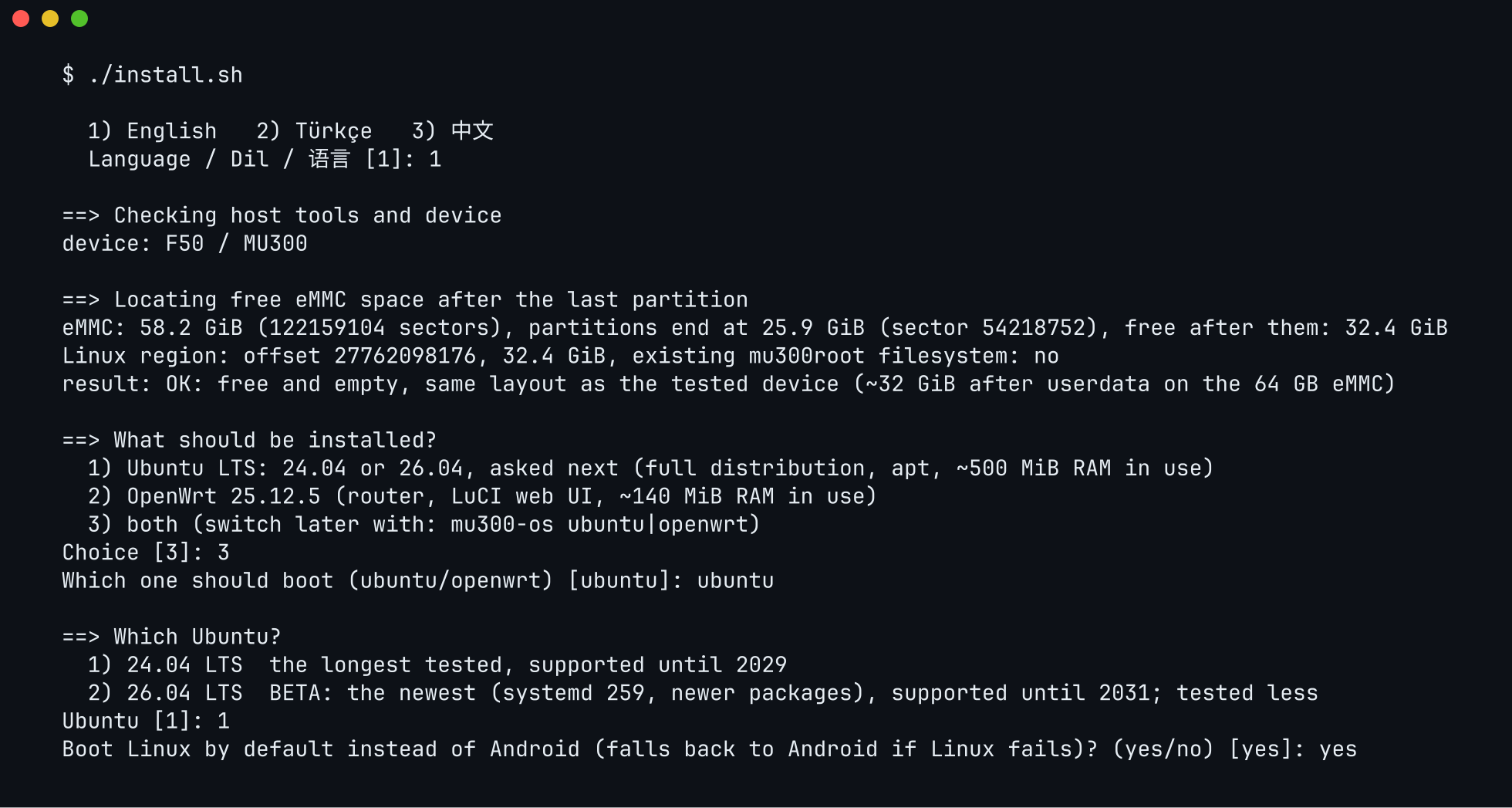
The installer's questions, one by one
The text in grey boxes is what the installer prints (shortened). The value in square brackets, like
[yes], is the default: pressing Enter takes it. Some questions only appear when they apply.
The language of the installer: 1 English (the default), 2 Türkçe, 3 中文.
Press Enter for English.
Asked only when an SD card is in the F50. internal uses the free internal space, sd formats the card for Linux (everything on it is erased, and you will type ERASE to confirm).
Not sure? internal on a 64 GB device; sd on the 32 GB variant.
Ubuntu is a full Linux system with apt (about 500 MiB of RAM in use). OpenWrt is a router system with a web interface (about 140 MiB). Both installs the two side by side; you switch later with mu300-os.
Not sure? 3, both (the default), if the check said both fit. See choose a system.
Asked when OpenWrt is chosen. The control panel adds a dashboard, cellular locks, SMS, an AT terminal and USB modes.
Not sure? 2 if you want to see signal and SMS in the browser; 1 for plain OpenWrt (the default).
With two systems: which one starts first. The other stays installed.
Press Enter for Ubuntu.
24.04 is the default and the longest tested, supported until 2029. 26.04 is the newest (systemd 259, newer packages), supported until 2031, and needs a mainline kernel (6.18 or 7.2).
Not sure? 1, 24.04 (the default).
yes: every start goes to Linux, and Android only after failed starts or when you ask for it. no: Android stays the default and you start Linux when you want it.
Press Enter for yes.
How many unfinished starts in a row before the device goes back to Android by itself. A start counts as failed when it never finishes within about a minute: the power goes, the battery runs out, or Linux hangs. Higher forgives a flaky cable; lower gets you to Android sooner. It is also your way back with no computer: cut the power while it is starting this many times in a row.
Press Enter for 5. Change it later with mu300-next-boot attempts N.
Your phones already know the Android hotspot, so they join Linux's hotspot without new settings.
Press Enter for yes.
The graphics chip, for computing with OpenCL. There is no screen either way.
Press Enter for yes; say no to save the space.
The optional VPN of mu300-linux-vpn. You can add it later on the device with sudo mu300-extra install vpn.
Not sure? no (the default on a first install).
The kernel is the core of Linux that talks to the hardware. 5.4 is Unisoc's vendor kernel, the longest tested. 6.18 is mainline Linux's long-term release with newer drivers and the same functions. 7.2 is the newest, tested less than 6.18.
Not sure? 1, 5.4 (the default). Ubuntu 26.04 needs 6.18 or 7.2. Change it later with sudo mu300-update kernel 6.18.
Asked only when Linux is already installed. update reinstalls the systems and keeps your settings, users, home directories, SSH host keys and OpenWrt's settings. wipe erases the Linux filesystem and starts from scratch.
Press Enter for update.
The password you will log in with, at least 6 characters, typed twice. Nothing shows while you type.
Choose one you will remember: you need it in step 3.
The last stop. Above it the installer prints exactly what it will write: the systems, the kernel, the default boot and the partitions it touches. Read it. Anything other than INSTALL cancels.
Type INSTALL in capitals.
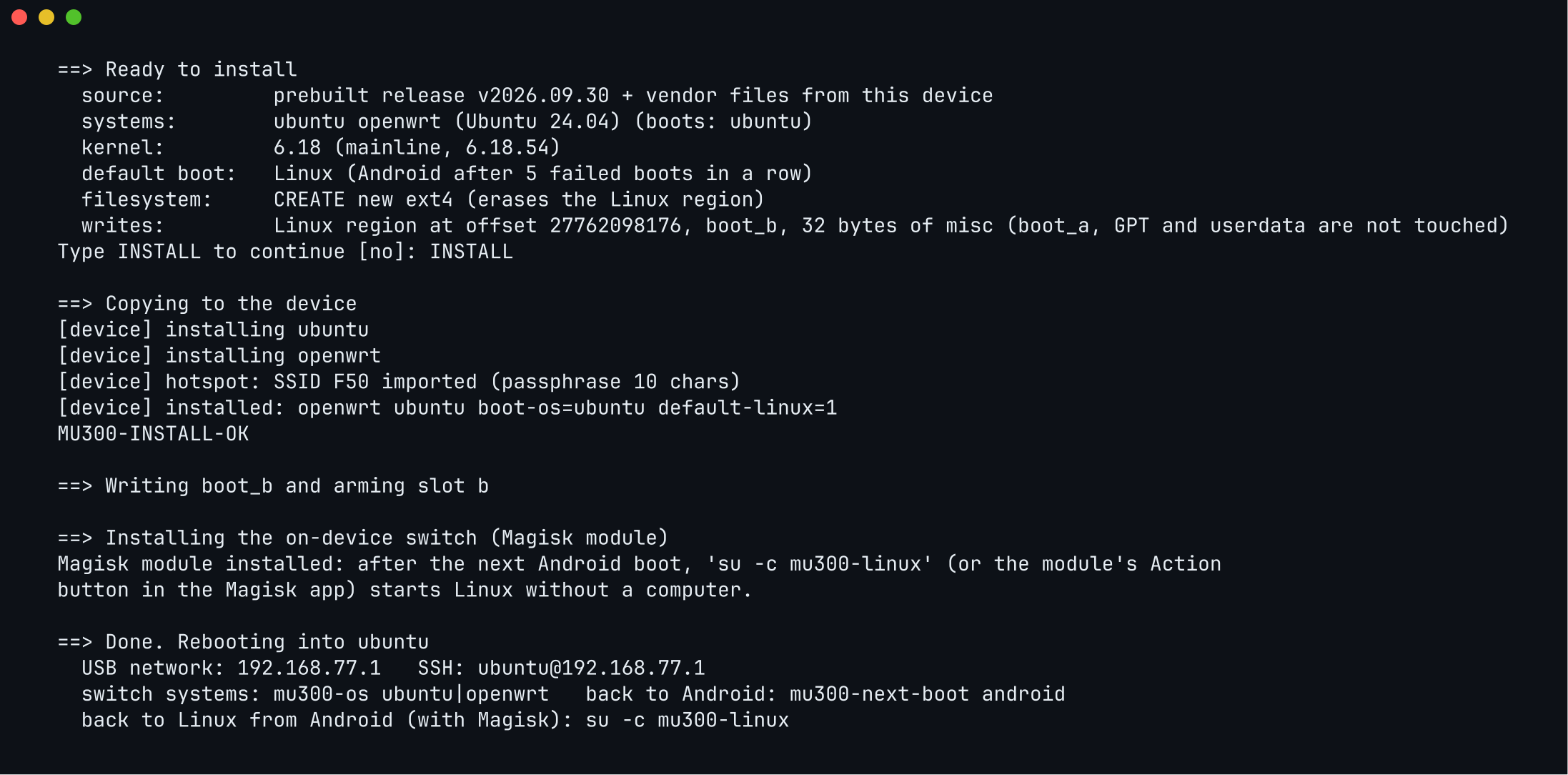
Log in
Wait about a minute after the restart. The device appears on your computer as a new network adapter over USB.
Then, in a terminal (on Windows, PowerShell has ssh built in):
ssh ubuntu@192.168.77.1        # Ubuntu on the F50
ssh root@192.168.77.1          # OpenWrt on the F50
ssh ubuntu@192.168.78.1        # Ubuntu on the U30 Air
Use the password you chose during the install. The first time, ssh asks whether you trust the
device's key: answer yes.
| F50 / MU300 | U30 Air | |
|---|---|---|
| Address over USB | 192.168.77.1 | 192.168.78.1 |
| Ubuntu | ssh ubuntu@192.168.77.1 | ssh ubuntu@192.168.78.1 |
| OpenWrt | ssh root@192.168.77.1 or http://192.168.77.1 in a browser | ssh root@192.168.78.1 or http://192.168.78.1 |
The two addresses differ so that an F50 and a U30 Air can be plugged into one computer at the same time.
The Wi-Fi network the device broadcasts is its hotspot: unless you chose otherwise, it has the name and password copied from Android.
macOS does not set up a network interface it has never seen while the screen is locked. The first time you plug the device in (or after an update that changed its USB addresses), unlock the Mac and the interface appears.
When the network does not come up at all, there is also a serial console over the same cable, which works even without networking:
screen /dev/cu.usbmodem* 115200 # macOSAfter the install
sudo mu300-toolkit             # a menu for everything
sudo mobile-data status        # is the 5G/LTE connection up?
sudo mu300-update check        # is there a newer release?
mu300-toolkit is a menu like raspi-config: temperatures, CPU and RAM use, network speeds,
performance profiles, Wi-Fi, VPN and software updates. The features page lists the
direct commands, and updates and safety explains updating, rolling back and switching to
Android and back.
Choices you can skip by setting them in advance
| Setting | What it does |
|---|---|
MU300_LANG=tr ./install.sh, .\install.ps1 -Lang zh | skips the language question (en, tr, zh) |
MU300_STORAGE=sd or internal | answers the internal storage or SD card question |
MU300_OPENWRT=plain or luci | answers "Which OpenWrt?" |
MU300_NO_SELF_UPDATE=1, -NoSelfUpdate | does not update the project from GitHub first |
MU300_FETCH_JOBS, MU300_RELEASE_URL | parallel download chunks (8 by default), or your own mirror of the release files |
Without a computer: Magisk zips
If the device already runs a rooted Android with Magisk 26 or newer, Linux can be installed from the device itself. Every release has one zip per system and kernel; the same zip works on the F50 and the U30 Air and finds the place by itself (the internal storage or an SD card).
| Zip | System | Kernel |
|---|---|---|
mu300-magisk-<tag>-openwrt-k5.4.zip | OpenWrt | 5.4 |
mu300-magisk-<tag>-openwrt-k6.18.zip | OpenWrt | 6.18 LTS |
mu300-magisk-<tag>-openwrt-k7.2.zip | OpenWrt | 7.2 |
mu300-magisk-<tag>-openwrt-luci-k5.4.zip | OpenWrt with the control panel | 5.4 |
mu300-magisk-<tag>-openwrt-luci-k6.18.zip | OpenWrt with the control panel | 6.18 LTS |
mu300-magisk-<tag>-openwrt-luci-k7.2.zip | OpenWrt with the control panel | 7.2 |
mu300-magisk-<tag>-ubuntu-24.04-k5.4.zip | Ubuntu 24.04 | 5.4 |
mu300-magisk-<tag>-ubuntu-24.04-k6.18.zip | Ubuntu 24.04 | 6.18 LTS |
mu300-magisk-<tag>-ubuntu-24.04-k7.2.zip | Ubuntu 24.04 | 7.2 |
mu300-magisk-<tag>-ubuntu-26.04-k6.18.zip | Ubuntu 26.04 | 6.18 LTS |
mu300-magisk-<tag>-ubuntu-26.04-k7.2.zip | Ubuntu 26.04 | 7.2 |
- Take one zip from the latest release and check it with
SHA256SUMS-magisk. A release has 11 of them, OpenWrt with the control panel included. - Install it in the Magisk app (Modules, Install from storage), or from
adb shell:
Not from recovery.su -c 'magisk --install-module /sdcard/Download/<zip>' - Read the output. It shows the device it found, where Linux goes, what it writes, and the password
it generated. The password is also in
/data/adb/mu300-linux-password.txt; delete that file after your first login. - Restart. Linux starts; if it does not, the device returns to Android by itself.
For two systems, install the OpenWrt (or control panel) zip and the Ubuntu zip one after the other. The zips never shrink
userdata; that stays with the computer installer. Settings such as the storage, the boot default or your
own password go in a mu300-install.conf file, explained in the
README.
Removing it again
With the device back in Android, run ./uninstall.sh (Windows: .\uninstall.ps1 or
uninstall.cmd). It makes Android the boot system again, restores the second boot partition and erases
the Linux filesystem. Your Android data is left alone. The choices it offers are on the
updates and safety page.